
Four decisions build the entire pipeline.
A trigger, a source, a transform, and a destination - connected once in the workflow builder, then reused every time new data shows up.
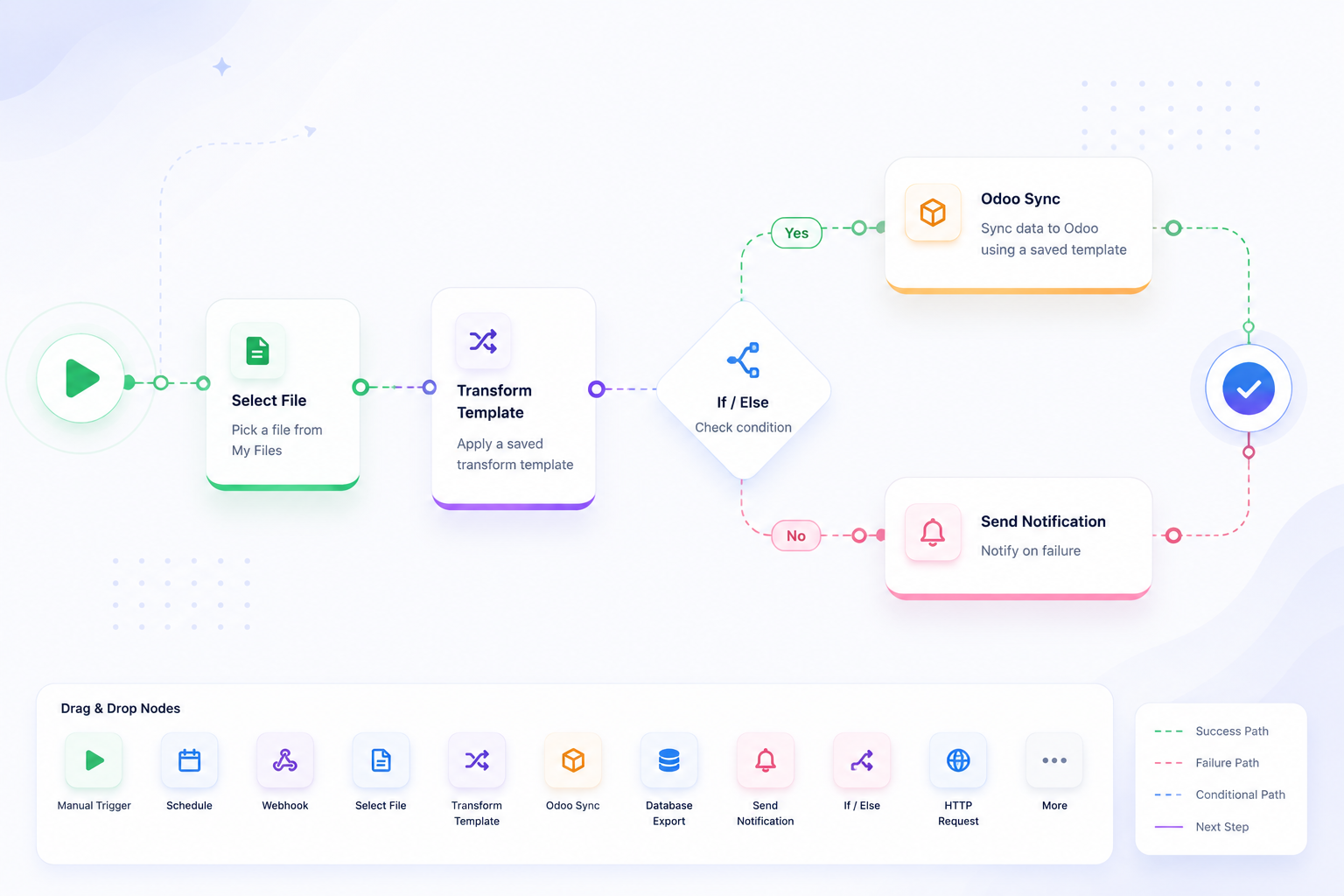
Kick a run off by hand, on a schedule that matches how often the data actually arrives, or from an external system hitting a webhook.
Pull from My Files directly, or have the workflow reach out itself to an FTP/SFTP server or a Google Drive folder.
Apply a saved Transform Template to reapply your exact cleanup logic, or ask the AI SQL Assistant for a query when the transformation is one-off.
Send the result to Odoo, Akeneo PIM, a MySQL/PostgreSQL database, Google Drive, or an FTP/SFTP folder - no manual export step.
Every node, in one palette
Drag a node onto the canvas, or click to add it - the same palette you'll use inside the builder.
Triggers
Manual Trigger
Run workflow manually
Triggers
Schedule
Run on a schedule (daily, weekly, etc.)
Triggers
Webhook
Trigger via external HTTP request
Data Sources
Select File
Pick a file from My Files
Data Sources
FTP/SFTP Import
Import a file from FTP server
Data Sources
Google Drive Import
Import from Google Drive
Transform
Transform Template
Apply a saved transform template to the file
Transform
AI SQL Assistant
Ask AI to generate a one-off transformation query
Export & Sync
Odoo Sync
Sync data to Odoo using a saved template
Export & Sync
Akeneo Sync
Sync data to Akeneo PIM
Export & Sync
Database Export
Export to MySQL or PostgreSQL
Export & Sync
Google Drive Export
Export transformed file to Drive folder
Export & Sync
FTP/SFTP Export
Export transformed file to FTP/SFTP folder
Utilities
Delay
Wait before continuing
Utilities
If / Else
Branch based on a condition
Utilities
HTTP Request
Make an API call
Utilities
Send Notification
Send an email notification
Utilities
Set Variable / Edit Fields
Set fields on the JSON output and optionally store them as workflow variables accessible via {{variables.name}} in downstream nodes.
Utilities
Respond to Webhook
Return a custom HTTP response to the calling webhook
Triggers
Manual Trigger
Run workflow manually
Triggers
Schedule
Run on a schedule (daily, weekly, etc.)
Triggers
Webhook
Trigger via external HTTP request
Data Sources
Select File
Pick a file from My Files
Data Sources
FTP/SFTP Import
Import a file from FTP server
Data Sources
Google Drive Import
Import from Google Drive
Transform
Transform Template
Apply a saved transform template to the file
Transform
AI SQL Assistant
Ask AI to generate a one-off transformation query
Export & Sync
Odoo Sync
Sync data to Odoo using a saved template
Export & Sync
Akeneo Sync
Sync data to Akeneo PIM
Export & Sync
Database Export
Export to MySQL or PostgreSQL
Export & Sync
Google Drive Export
Export transformed file to Drive folder
Export & Sync
FTP/SFTP Export
Export transformed file to FTP/SFTP folder
Utilities
Delay
Wait before continuing
Utilities
If / Else
Branch based on a condition
Utilities
HTTP Request
Make an API call
Utilities
Send Notification
Send an email notification
Utilities
Set Variable / Edit Fields
Set fields on the JSON output and optionally store them as workflow variables accessible via {{variables.name}} in downstream nodes.
Utilities
Respond to Webhook
Return a custom HTTP response to the calling webhook
FAQ
How does the Workflow Builder work?
The Workflow Builder follows a simple four-step process: choose a trigger, select a data source, apply a transformation, and send the results to a destination. Once configured, the same workflow can be reused whenever new data arrives.
What types of triggers are supported?
Workflows can be started manually, on a schedule, or through a webhook. This allows you to automate data processing based on your preferred workflow or external events.
Can I reuse transformation logic across multiple workflows?
Yes. Save your transformation steps as reusable templates and apply them to different files or workflows, ensuring consistent data processing while reducing repetitive work.
Which systems can I connect to?
You can import data from sources such as Google Drive, FTP/SFTP, and local files, then export or synchronize data with systems including Odoo, Akeneo, MySQL, PostgreSQL, and other supported destinations.
What utility nodes are available?
The Workflow Builder includes utility nodes such as Delay, If/Else, HTTP Request, Send Notification, Set Variable, and Respond to Webhook, allowing you to build flexible workflows with custom logic and automation.