
Build it once.
Let it run itself.
How a leading retail group replaced 40 hours of monthly manual supplier data cleanup with a four-node workflow that fires itself on a schedule.
The "Stitching" Nightmare
Before Supabind, the data team was trapped in a cycle of manual "stitching." Every Friday, messy exports from 12 different suppliers arrived in 12 different formats.
Critical Friction Points
Someone had to remember to log in and re-run the same cleanup every single week.
Inconsistent column naming across suppliers prevented easy joins and unions.
Transformation logic lived in one person's head, not in anything reusable.
Getting the cleaned file into Odoo was still a manual export/import step.
The Reusable Workspace
Trigger it your way
Kick a workflow off manually, on a Schedule (daily, weekly, whatever cadence the source data actually arrives on), or via Webhook when an upstream system fires an event.
Pull the file automatically
Select File pulls from My Files, or skip the manual step entirely with FTP/SFTP Import or Google Drive Import - the workflow reaches out and grabs the latest file itself.
Apply a saved Transform Template
The exact cleanup logic - renamed columns, merged fields, validation rules - gets reapplied to the new file automatically, instead of rebuilding it by hand every time.
Sync straight into your system
Odoo Sync, Akeneo Sync, Database Export to MySQL/PostgreSQL, Google Drive Export, or FTP/SFTP Export - the clean result lands directly where it needs to be, no manual handoff.
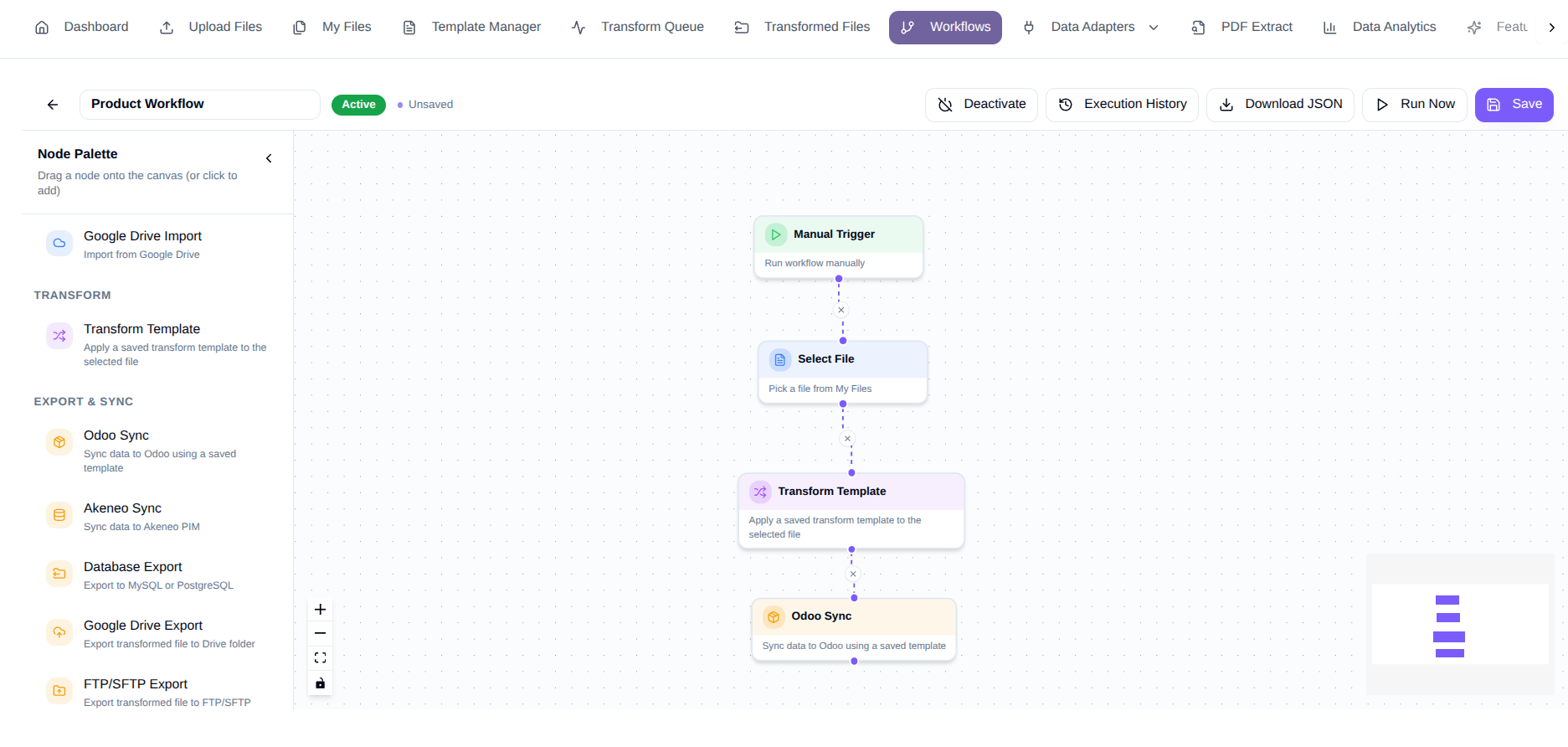
The workflow that actually runs every Friday
Four nodes, connected once. This is the exact chain configured in the workflow builder for the retail group's supplier refresh.
Run workflow manually
Pick a file from My Files
Apply a saved transform template to the selected file
Sync data to Odoo using a saved template
Swap Manual Trigger for Schedule to run it unattended, or replace Odoo Sync with Database Export, Akeneo Sync, or FTP/SFTP Export - same chain, different last node.
Everything the builder gives you to work with
Triggers
Manual Trigger
Run workflow manually
Schedule
Run on a schedule (daily, weekly, etc.)
Webhook
Trigger via external HTTP request
Data Sources
Select File
Pick a file from My Files
FTP/SFTP Import
Import a file from FTP server
Google Drive Import
Import from Google Drive
Transform
Transform Template
Apply a saved transform template to the selected file
Export & Sync
Odoo Sync
Sync data to Odoo using a saved template
Akeneo Sync
Sync data to Akeneo PIM
Database Export
Export to MySQL or PostgreSQL
Google Drive Export
Export transformed file to Drive folder
FTP/SFTP Export
Export transformed file to FTP/SFTP folder
Utilities
Delay
Wait before continuing
If / Else
Branch based on a condition
HTTP Request
Make an API call
Send Notification
Send an email notification
Set Variable / Edit Fields
Set fields on the JSON output and optionally store them as workflow variables, accessible via {{ variables.name }} in downstream nodes.
Respond to Webhook
Return a custom HTTP response to the calling webhook
FAQ
What is Workflow Automation?
Workflow Automation lets you connect triggers, data sources, transformation templates, and export actions into a single workflow. Once configured, the workflow runs automatically without repeating manual steps.
What can trigger a workflow?
A workflow can start manually, on a scheduled interval, or through a webhook from an external application. This allows workflows to run whenever new data becomes available.
Can I reuse existing transformation templates?
Yes. Saved transformation templates can be applied to any new file, ensuring every workflow follows the same data preparation rules without rebuilding the process.
Where can I send the processed data?
Processed data can be synchronized with business applications such as Odoo or Akeneo, exported to MySQL or PostgreSQL databases, uploaded to Google Drive, or transferred to an FTP/SFTP server..
How can I monitor my workflows?
You can view workflow status, execution history, and processing results to verify that each run completed successfully and quickly identify any issues that require attention.